how-to
QR Code for Google Reviews: Use Google's Free One
How to get the free review QR code from your Google Business Profile, where to print it, the two rules that get reviews removed, and when to count scans per spot.
Read More →Scan a QR code with the Camera app on iPhone or Android, from Control Center or Quick Settings, and what to try when the code won't scan.
Your phone is already a QR code scanner. Open the Camera app, hold the phone so the whole code is on screen, and tap the link that appears. No app needed, on an iPhone or an Android phone.
Per Apple's help article "Scan a QR code with your iPhone or iPad" (checked again on 28 October 2026):
With the Camera app
With Code Scanner
Android phones differ by maker. Google's help page for Pixel phones says the Camera app is the easiest way (checked again on 28 October 2026):
A second way on a Pixel: swipe down to open Quick Settings and tap Scan QR code. If the button isn't there, swipe left or use the pencil icon to add it. Google Lens also scans QR codes.
On a Samsung Galaxy, Samsung's support page (checked again on 28 October 2026) gives two ways:
If it won't scan, open the Camera settings (the gear icon) and turn on Scan QR codes. Menu names can differ by model, so yours may say something slightly different.
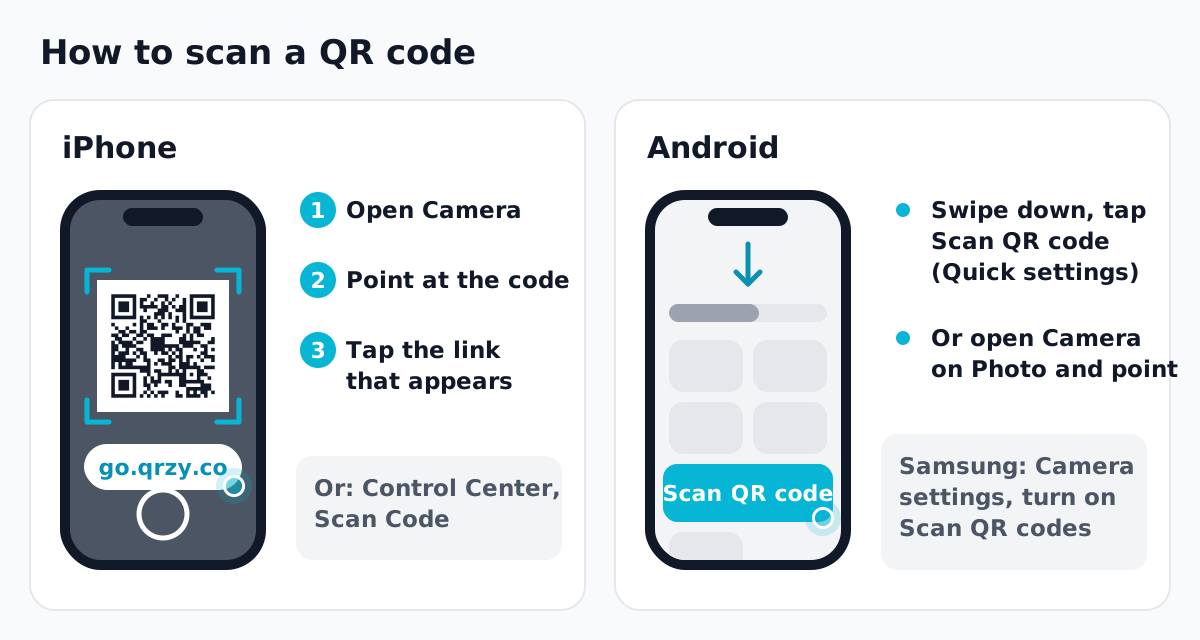 Illustration, not a screenshot. Steps from Apple's, Google's and Samsung's help pages.
Google's help page lists four fixes:
If you're scanning from a screen, turn the brightness up. If it's printed on something shiny, tilt it until the glare is gone.
The phone shows you the link before it opens anything. Read it. A QR code is just a way to type a web address, and the address is the part to check, the same way you would with a link in a message. If it looks wrong for where you found the code, don't open it. What is a QR code? shows what the squares actually hold.
That's a different problem, and it has its own causes: size, contrast, a link that's too long. Start with why a QR code isn't scanning. To check a code before you print, our guide to testing a QR redirect walks through it. For codes that scan the first time, see the QR code best practices guide.
If you need a code of your own, our free QR code generator makes a static one with no sign-up. A code you want to change after printing is a dynamic QR code, and dynamic vs static QR codes compares the two. On QRZY's Free plan, scans of dynamic codes show a 5-second countdown before the page opens, so the phone shows a QRZY page first.
Do I need an app to scan a QR code? No. The Camera app on a current iPhone or Android phone reads QR codes, per Apple's, Google's and Samsung's help pages.
Why does my camera show nothing when I point it at a code? On a Pixel, check that Camera scan suggestions is on. On a Samsung, check that Scan QR codes is on in the Camera settings. Otherwise, try the fixes above: steady hand, good light, clean lens, whole code in view.
Is it safe to scan a QR code? Scanning only reads the code. What matters is what you open afterward, so read the address first.
Free static codes, no sign-up. For a code you can change after printing, QRZY's Free plan gives one, with a 5-second countdown on every scan.
How to get the free review QR code from your Google Business Profile, where to print it, the two rules that get reviews removed, and when to count scans per spot.
Read More →How to get the QR code Instagram gives every profile, when it is enough, and how to make your own that counts scans per spot and can point somewhere new later.
Read More →How to make a QR code for a link or website, free: in Chrome, Edge, on your phone, with a free generator, or as a dynamic code you can change later.
Read More →