how-to
Instagram QR Code: Use Theirs or Make Yours
How to get the QR code Instagram gives every profile, when it is enough, and how to make your own that counts scans per spot and can point somewhere new later.
Read More →How to get the free review QR code from your Google Business Profile, where to print it, the two rules that get reviews removed, and when to count scans per spot.
Your review QR code is already in your Business Profile, and it costs nothing. Save it from a computer, print it, done. You only need a dynamic QR code of your own to count scans per spot, or if the review link might change.
Per Google's help page ("Create a Google link or QR code to request reviews", checked again on 28 October 2026):
One catch, in Google's words: reviews QR codes "can only be generated on a computer browser, not on mobile devices." If you're doing this on your phone between customers, you'll find the link but not the code. Do it at a desk.
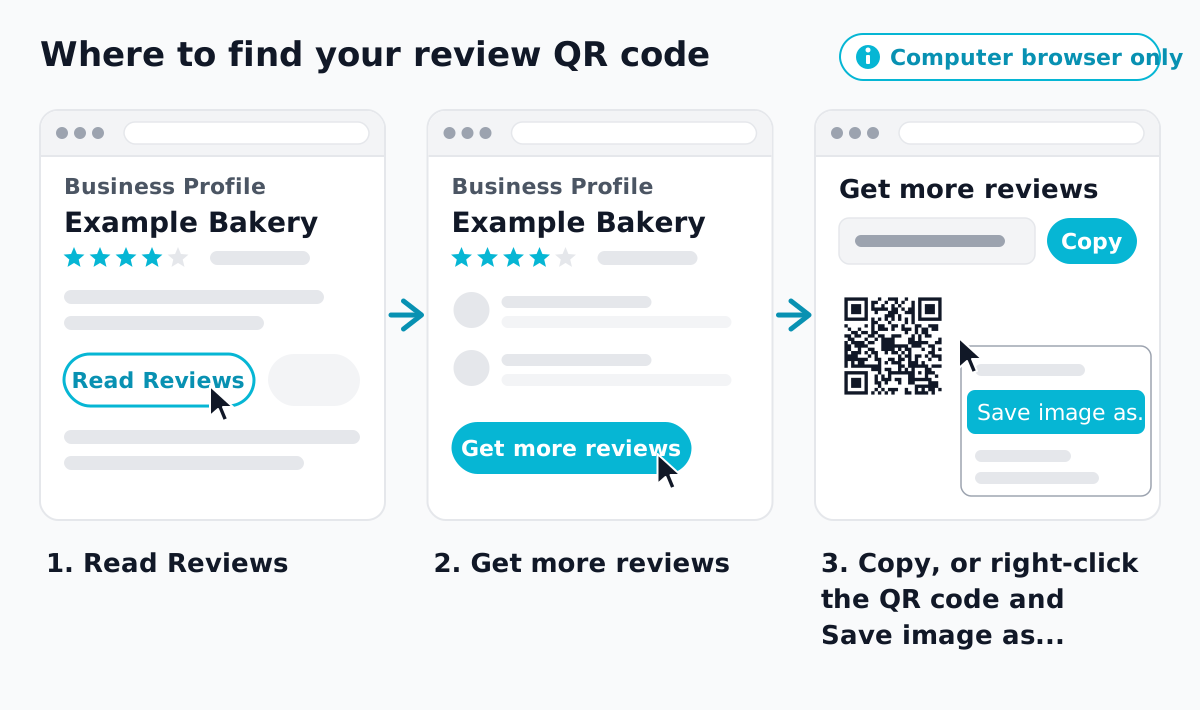 Illustration, not a screenshot. Labels from Google's help page.
Google suggests receipts, thank-you emails, the end of a chat and a printed sign in the shop. The common thread is timing: the customer has just paid, eaten or been helped, and the experience is fresh.
Some spots that fit that moment:
A sign by the door on the way in fits less well. Nobody has an opinion yet.
Both apply however the customer reaches the form, by QR code or not.
No rewards. Google's review policy for business owners says offering "incentives, like free or discounted goods or services, in exchange for customers to post reviews" is "considered fake & misleading content and is strictly prohibited". A coffee for a review counts. So does a discount on the next visit.
No sorting. Google's Maps content policy lists, as not allowed, to "discourage or prohibit negative reviews, or selectively solicit positive reviews from customers." In QR terms: don't put a "Happy? Leave a review. Unhappy? Tell us first" card on the table, and don't route only happy customers to Google. Ask everyone the same way.
Customers also need to be signed in to a Google account to post, per Google's help page on getting more reviews. It's one reason some scans never turn into reviews.
Google's code goes straight to your review form, so nothing between the scan and the form counts anything. If you print it on receipts, table tents and bags, you can't tell which one people actually scan.
A code of your own in between is worth it in two cases:
go.qrzy.co/yourcode/receipt, go.qrzy.co/yourcode/table, go.qrzy.co/yourcode/bag. All three still land on the same Google form.If neither applies, stay with Google's code. It's free and it has no extra step.
Channels start on the Starter plan ($100 a year, 3 channels per code; see pricing). Pro ($250 a year) gives 10 per code. The Free plan has no channels. Free scans also show a 5-second countdown before the visitor moves on, or a QRZY bar over your page. Google's review form refuses to be shown inside a frame, so on Free it's always the countdown, a long wait in front of a review form. For reviews, Free only makes sense if you just want an editable link and can live with the wait.
Check the link before you paste it. QRZY accepts review links on g.page and search.google.com. It blocks link shorteners as destinations, and that includes goo.gl links such as maps.app.goo.gl. If the link you copied starts with maps.app.goo.gl, open it in a browser and copy the full address the review form opens on.
receipt and a Channel Name such as "Receipts", then select Create Channel.Each printed code now counts on its own, and all of them lead to the same review form. If the review link ever changes, edit the Default URL once and every printed code follows.
What this doesn't do: QRZY counts scans, not reviews. Google doesn't tell us whether a scan became a review, so compare scans per spot with the reviews you see arriving, week by week. Starter keeps 7 days of analytics and Pro keeps 30, so write the counts down each week instead of looking back later.
More ideas for the receipt and the table are in QR code marketing ideas, and how to track QR code scans explains what the counts mean. Restaurants have their own page on QR codes for restaurants, and channels are covered in more depth on QR code tracking.
Can I make the review QR code on my phone? You can copy the review link on a phone, but Google says the QR code itself can only be generated in a computer browser.
Do customers need a Google account? Yes. Google says customers must be signed in to a Google account to leave a review.
Can I print the same code everywhere? Yes, and it works. You just won't know which spot brought the scans. One channel per spot fixes that.
Can I offer a discount for a review? No. Google prohibits incentives for reviews, including discounts and free goods.
Channels start on Starter ($100/year). The Free plan has one editable code with a 5-second countdown on every scan.
How to get the QR code Instagram gives every profile, when it is enough, and how to make your own that counts scans per spot and can point somewhere new later.
Read More →How to make a QR code for a link or website, free: in Chrome, Edge, on your phone, with a free generator, or as a dynamic code you can change later.
Read More →A location QR code is a QR code of a map link. How to build a Google Maps link that opens the app on any phone, and how to point one code at a different spot each day.
Read More →